Table of Contents
Game Won't Launch — Startup Issues
If Paralives fails to start entirely (Steam shows "Running" briefly then stops, or nothing happens when you click Play), follow these diagnostic steps in order.
Step 1: Verify Game Files
The most common cause of launch failures is corrupted or missing game files after an update:
- Open Steam Library → Right-click Paralives → Properties
- Navigate to Installed Files tab → Click "Verify integrity of game files"
- Wait for Steam to scan and redownload any missing/corrupted files (typically 2–5 minutes)
- Try launching again
Step 2: Check System Requirements
| Component | Minimum | Recommended |
|---|---|---|
| OS | Windows 10 64-bit | Windows 11 64-bit |
| CPU | Intel Core i5-6400 / AMD Ryzen 5 1600 | Intel Core i7-10700 / AMD Ryzen 7 5800X |
| RAM | 8 GB DDR4 | 16 GB DDR4 |
| GPU | NVIDIA GTX 1060 6GB / AMD RX 580 8GB | NVIDIA RTX 3070 / AMD RX 6800 XT |
| Storage | 30 GB SSD (HDD not supported) | 50 GB NVMe SSD |
| DirectX | Version 12 | Version 12 |
Step 3: Disable Conflicting Software
Certain programs interfere with Paralives' anti-cheat and DRM systems:
- Overlay applications: Discord overlay, GeForce Experience overlay, Xbox Game Bar, MSI Afterburner overlay — try disabling all of them
- Antivirus/Firewall: Add Paralives (
Paralives.exe) and Steam to your antivirus exclusion list - VPN/Proxy: Disconnect any active VPN connection before launching
- Other games: Close other running games or game launchers (Epic Games, Ubisoft Connect, etc.)
Important: Paralives does NOT support HDD (hard disk drive) installation. The game requires an SSD for acceptable performance. If you installed on an HDD, move the game to an SSD via Steam's "Move Install Folder" feature or reinstall on an SSD partition.
Step 4: Reinstall Visual C++ & DirectX
Paralives depends on several Microsoft runtime libraries that can become corrupted:
- Navigate to your Steam folder:
steamapps\common\Paralives\_CommonRedist\ - Run vcredist_x64.exe (Visual C++ Redistributable) — select Repair
- Run DXSetup.exe (DirectX) — select Repair
- Restart your computer and try launching again
Black Screen on Launch
A black screen (with or without audio) usually indicates a graphics driver issue or resolution problem rather than a complete failure to launch.
Quick Fixes
- Alt+Enter: Press Alt+Enter to toggle between windowed and fullscreen mode. This often resolves resolution mismatches
- Delete graphics config: Navigate to
%APPDATA%\Paralives\and deletegraphics_config.ini. The game will regenerate it with default settings on next launch - Update GPU drivers: Download the latest drivers directly from NVIDIA (GeForce Experience) or AMD (Adrenalin). Windows Update drivers are often outdated
- Force windowed mode: Right-click Paralives in Steam → Properties → General → Launch Options, add:
-windowed -w 1280 -h 720
If black screen persists: Try launching with integrated graphics temporarily (disable dGPU in Device Manager) to determine if it's a dedicated GPU-specific issue. If the game loads with integrated graphics, your dedicated GPU driver is the culprit — do a clean install using DDU (Display Driver Uninstaller).
`n`nLow FPS & Performance Issues
Paralives is simulation-heavy and can be demanding, especially in large households with many Paras. Here's how to optimize performance.
In-Game Graphics Settings
| Setting | Impact | Recommendation |
|---|---|---|
| Resolution Scale | Very High | 75–90% for mid-range GPUs |
| Shadow Quality | High | Medium or Low for large builds |
| Simulation Detail | Very High | Reduce if household has 6+ Paras |
| LOD Distance | Medium | Medium for most setups |
| Anti-Aliasing | Medium | TAA (default) or FXAA for better perf |
| Reflections | High | Off or Low — biggest FPS gain |
| Particle Effects | Low-Medium | Medium unless crowded scenes |
| V-Sync | Variable | Off for max FPS, On for screen tearing |
Beyond In-Game Settings
- Close background apps: Browser tabs (especially YouTube/Streaming), Discord, Spotify consume significant RAM and CPU
- Windows Game Mode: Enable via Settings → Gaming → Game Mode. It prioritizes game processes over background tasks
- Power plan: Set Windows Power Options to "High Performance"
- GPU overclock: If you've overclocked your GPU, revert to stock clocks
- Mod count: Each active mod adds overhead. Disable mods you're not actively using
- Household size: Larger households (8+ Paras) significantly impact FPS due to pathfinding and AI calculations per Para
Target FPS Benchmarks
30+ FPS: Minimum playable — acceptable on minimum spec hardware
60 FPS: Smooth experience — target for most mid-range builds
90+ FPS: Excellent — achievable on high-end hardware with optimized settings
Note: Build Mode typically runs at higher FPS than Live Mode because there's no active simulation. A 30 FPS drop when switching to Live Mode is normal.
Crashes & Freezes
Random crashes (game closes to desktop) or freezes (screen locks up) are frustrating but usually solvable.
Mod-related crashes (most common): 70% of reported crashes are caused by outdated or incompatible mods. Always update all mods after every game patch. Use the Mod Manager's "Check for Updates" function before reporting a crash as a bug.
| Symptom | Likely Cause | Fix |
|---|---|---|
| Crash on load screen | Corrupted save or broken mod | Disable all mods → test → re-enable one-by-one |
| Crash when entering Build Mode | Furniture mod conflict | Remove recently added furniture mods |
| Crash during time-skip | Event queue overflow | Don't skip more than 4 hours at once |
| Crash when saving | Disk space or permissions | Ensure 5GB+ free space; run as admin |
| Random crash every 30–60 min | Memory leak (mod or game) | Restart game every 2 hours; check mod memory usage |
| Freeze with looping sound | GPU driver hang | Update/reinstall GPU drivers clean |
| Complete freeze (no sound) | Game or OS hung | Ctrl+Shift+Esc → End Task on Paralives.exe |
Generating Crash Reports
When Paralives crashes, it automatically generates a crash report. Find these at:
%USERPROFILE%\Documents\Paralives\CrashReports\
Each report includes timestamp, error code, stack trace, and system specs. Attach the file when submitting bug reports.
Save File Problems & Corruption
Save issues range from minor annoyances (lost progress since last save) to critical problems (corrupted household that won't load).
Save Won't Load
- Try loading the auto-save instead (the game keeps 3 rolling auto-saves)
- If auto-save also fails, use the Save Recovery Tool: Main Menu → Load Game → select problematic save → click wrench icon → "Attempt Recovery"
- The recovery tool scans for damaged data blocks and attempts reconstruction using backup fragments
Best Practices: Save manually every 15–20 minutes (Ctrl+S). Keep at least 2 manual save slots per household and rotate between them. Never force-quit while saving. Back up your entire saves folder weekly to external drive or cloud storage.
Save File Location
Your saves are stored at:
%USERPROFILE%\Documents\Paralives\Saves\
To back up, simply copy this entire folder. To restore, paste it back after closing the game completely.
Audio & Sound Problems
No Sound At All
- Check Windows volume mixer — ensure Paralives isn't muted and volume is above 0%
- Verify default playback device in Windows Sound Settings
- In-game: Settings → Audio → Output Device — try switching options
- Restart audio service: Win+R →
services.msc→ restart "Windows Audio"
Audio Cutting Out / Crackling
- This is almost always a sample rate mismatch. Set Windows audio to 48kHz:
Sound Settings → Speaker properties → Advanced → 24 bit, 48000 Hz - Update audio drivers from motherboard manufacturer (not generic Windows Update drivers)
- Disable audio enhancement software (Dolby Atmos, DTS, Nahimic, Sonic Studio)
Control & Input Issues
Camera Not Responding / Spinning Wildly
- Reset camera bindings: Settings → Controls → Camera → Click "Reset to Defaults"
- Controller conflict: Unplug unused gamepads — controller input can interfere with mouse camera control
- RMB stuck: Right-click + drag rotates camera. If RMB is stuck physically or software-wise, camera spins uncontrollably
Multi-Select Not Working in Build Mode
- Make sure you're not in a special tool mode that overrides multi-select
- Hold Ctrl (not Shift) for additive selection in Build Mode
- Some build-tool mods can break native multi-select. Test with all mods disabled
Build Mode Glitches
Build Mode is complex and occasionally exhibits visual or functional glitches.
| Issue | Description | Workaround |
|---|---|---|
| Furniture clipping through walls | Placed object partially inside wall mesh | Delete and replace with grid-snapping on |
| Curved wall gaps | Small visual gap between curved segments | Cosmetic-only; doesn't affect room enclosure |
| Stair placement fails | Stairs won't connect to upper floor | Ensure floor height matches exactly |
| Roof auto-generation wrong | Auto-roof creates incorrect shape | Use manual roof tools instead |
| Color wheel not applying | Selected color doesn't change object | Click object again; some have locked color regions |
| Foundation height stuck | Can't adjust foundation after building | Set foundation before placing walls |
| Terrain smoothing artifacts | Jagged edges after terrain editing | Use larger brush size; known EA limitation |
| Window placement rejected | "Cannot place here" on valid wall | Wall may be too short or half-wall type |
Known Early Access Issues
As an Early Access title, Paralives has acknowledged issues being actively worked on by Mass & Motion Studios.
Actively Being Fixed (High Priority)
- Long-term save bloat: Saves played for 100+ in-game years gradually increase load times. Save optimization planned for next major patch
- Large household pathfinding: 8-Para households show momentary AI hesitation in narrow spaces
- Memory usage over extended sessions: Playing 4+ hours causes gradual memory increase. Restart every 3–4 hours as workaround
- Steam Cloud sync conflicts: Occasionally overwrites local saves with older versions. Manual backup recommended
Accepted Limitations (Lower Priority)
- Ultra-wide monitor support: Some UI elements stretch incorrectly on 21:9 and 32:9 displays
- Mac/Linux performance: These platforms run 15–25% slower than equivalent Windows hardware
- Mod loading order sensitivity: Some mod combinations require specific load orders. Auto-resolver planned
- Extreme build sizes: Lots larger than 64×64 tiles may cause rendering hiccups
Check Known Issues
The official Paralives Trello Board (publicly accessible) lists all tracked bugs with status (To Do / In Progress / QA / Done) and target patches. Search before reporting — your issue may already be documented with a workaround.
`n`nHow to Report Bugs Properly
Official Bug Reporting Channels
- F6 in-game reporter: Press F6 during gameplay to open the bug dialog. Automatically attaches session log, system specs, and screenshot
- Steam Discussions → Bug Reports forum: For detailed written reports with attachments
- Official Discord #bug-reports channel: For quick questions about known issues
- Email: bugs@massandmotion.studio (for security-sensitive issues only)
Ideal Bug Report Template
What Every Good Report Should Include
Title: [Platform] Brief description
Example: "[PC] Career promotion task counter resets after saving"
Steps to Reproduce: Numbered, specific steps anyone can follow
Expected Result: What should happen
Actual Result: What actually happens
Reproduction Rate: Every time / Sometimes / Rarely / Once
System Specs: CPU, GPU, RAM, OS version, Display resolution
Mods Enabled: List active mods or state "No mods"
Attachments: Screenshot, video clip, crash report (.log), or save file
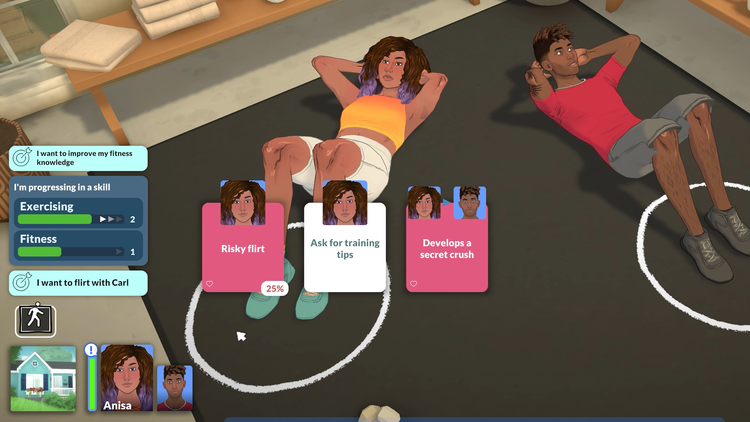
Known Issues & Screenshots
Frequently Asked Questions
The most likely culprits are: (1) An overnight Steam update to Paralives or dependencies like DirectX/VC++ runtimes — run Verify Integrity of Game Files. (2) Windows Update installed conflicting driver or system component. (3) A mod auto-updated via Steam Workshop and the new version has a bug. Start with Verify Files — it resolves 60% of "worked yesterday, broken today" cases.
No. Paralives stores saves, screenshots, mods, and user configuration outside the game installation directory. Saves are in %USERPROFILE%\Documents\Paralives\Saves\, mods in %USERPROFILE%\Documents\Paralives\Mods\, and settings in %APPDATA%\Paralives\. Uninstalling/reinstalling via Steam won't touch any of these. Your households, custom content, and keybindings remain intact. Still, back up Documents/Paralives before major operations.
Use the clean test method: (1) Launch with ALL mods disabled (Main Menu → Mods → Disable All). (2) Create a brand-new test household (don't load existing saves that may contain mod-corrupted data). (3) Try reproducing the issue. If it disappears with mods off, it's a mod conflict. Re-enable mods one at a time to isolate the culprit. If it persists without mods, it's a base game bug to report to developers.
Yes! Press ` (tilde/backtick key) to open the developer console. Available commands include: stats.fps, stats.memory, stats.simulation for real-time metrics; reload.assets to reload assets without restarting; debug.collision, debug.pathfinding, debug.needs for visualization overlays; event.fire random to trigger events; log.export for diagnostics. Use only in throwaway test saves — console commands can cause unexpected behavior.
It varies by severity. Critical bugs (won't launch, save corruption, data loss): 1–2 weeks, often faster with hotfixes. Major bugs (crashes, broken features, progression blockers): monthly updates. Minor bugs (visual glitches, UI quirks): batch-fixed every 2–3 months. During Early Access, patches release roughly every 3–4 weeks. Track specific bugs on the public Trello board which shows development phase and estimated fix version.